What is React?
React is a JavaScript library for creating user interfaces, especially for developing single-page applications (SPAs) React project.
It allows you to split the user interface into small, reusable components.
React uses a virtual DOM to make applications fast and efficient.
State and props can be used to dynamically display and update data.
It is used in many large web applications today.
What is a component?
A component is an independent and reusable part of the UI that returns JSX in React.
What is state used for?
State is used to store and dynamically update component data, which causes the UI to automatically re-render.
Why is React useful for building web applications?
React makes code modular, fast, and easy to maintain, and allows you to create interactive user interfaces.
Important terms
- JSX – JavaScript extension that allows you to write HTML-like syntax inside React.
- Component – reusable UI part that returns JSX.
- Props – data passed from a parent component to a child component.
- State – internal variable data of a component.
React project creation
The most common way to start a React project is to use the create-react-app tool or the more modern Vite. (I used Visual Studio)
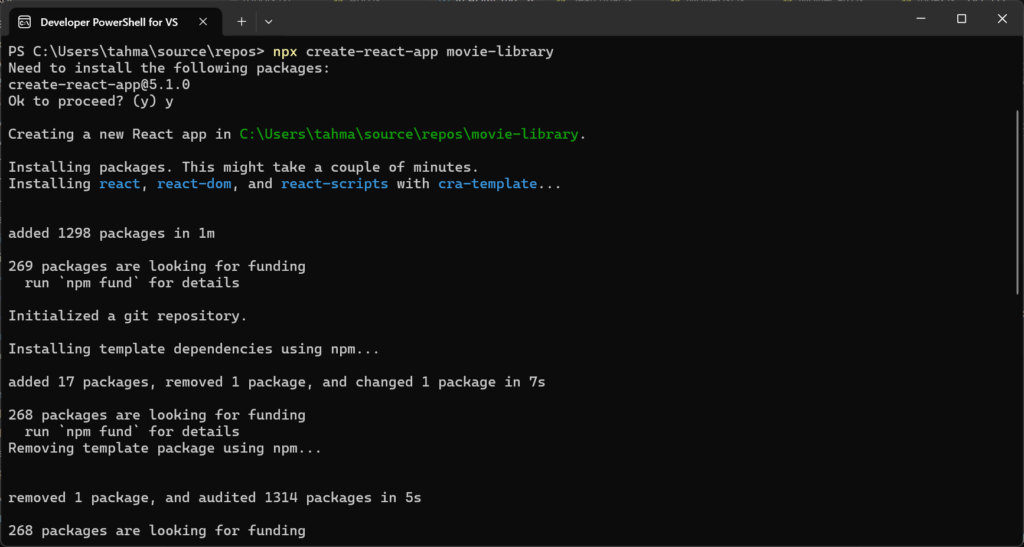
# Powershell
npx create-react-app movie-library
cd movie-library
# Powershell
npm start
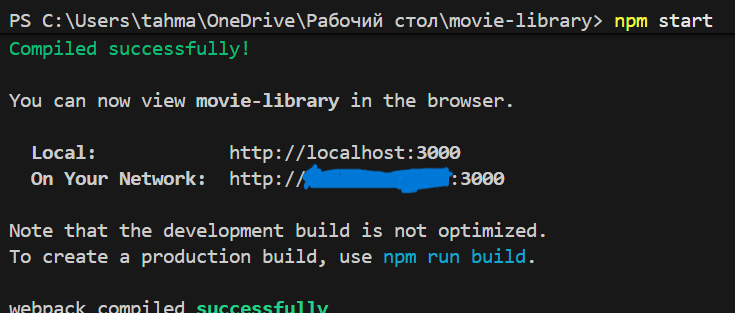
Localhost:3000 is being used
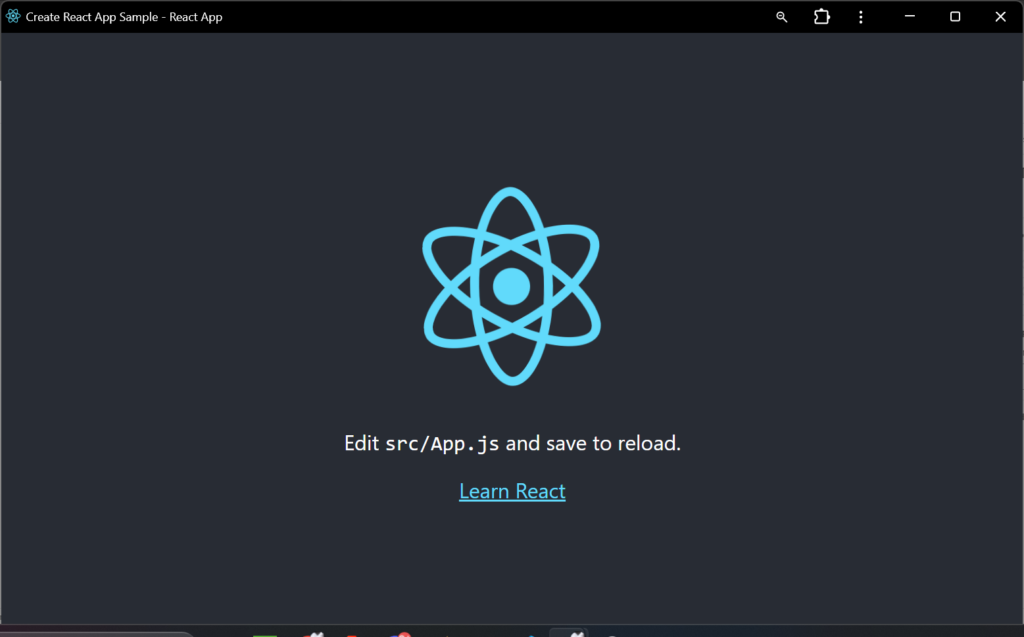
about installing React: you can install it via docker but the easiest is just to download it via windows it’s down there:
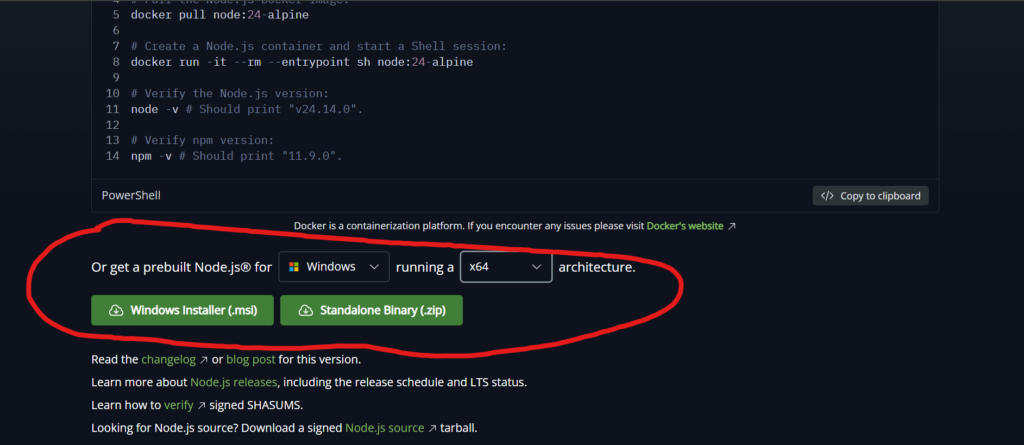
The link: https://nodejs.org/en/download
you can just install via msi
Components which we are using:
after setting up our components there would be other stuff like other files and md file, you can just keep them :3
App.js – This is the main (root) component. It holds all the application logic, manages the state of the movie list, and calls other components.
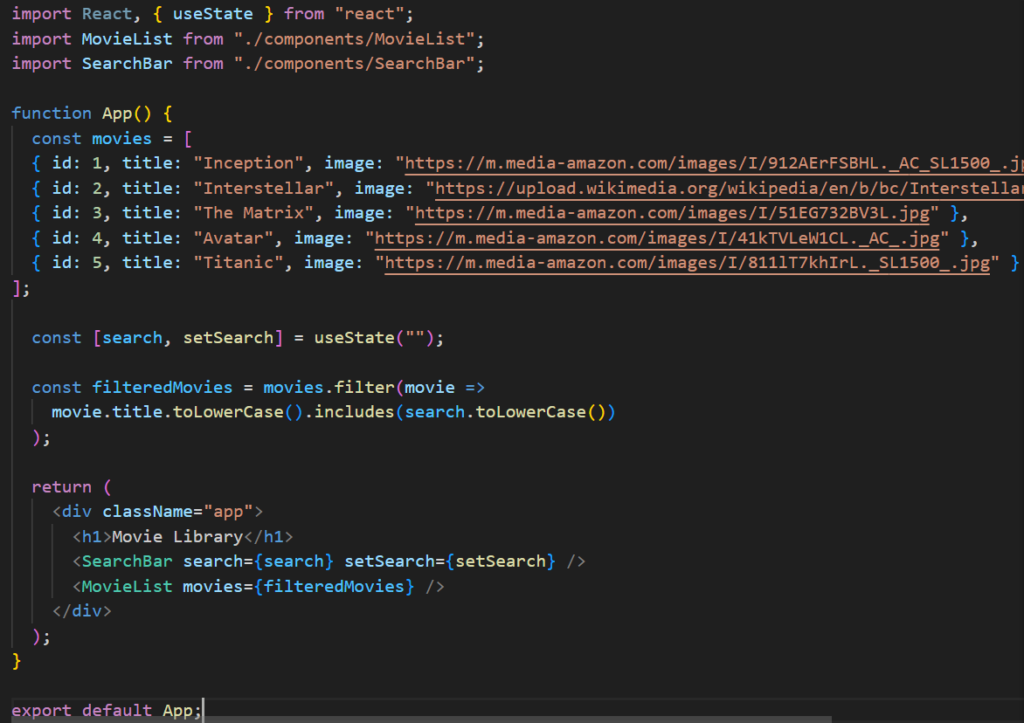
MovieList.js – Selle komponendi ülesanne on võtta vastu filmide nimekiri (props-ina) ja kuvada need. See toimib n-ö konteinerina filmikaartidele.
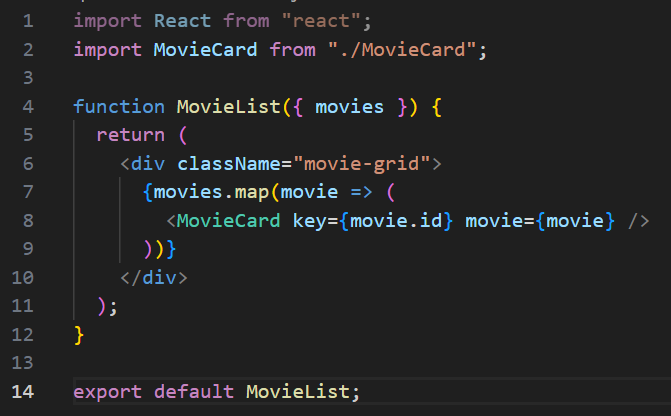
MovieCard.js – This is the smallest component, responsible for displaying information about a specific movie (image, title, year). It is used repeatedly for each movie.
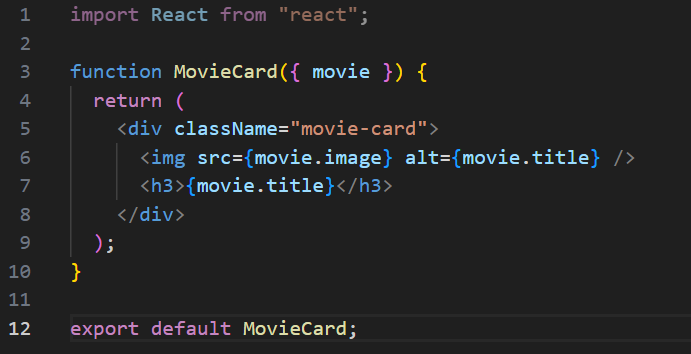
Using State to display movies
const movies = [
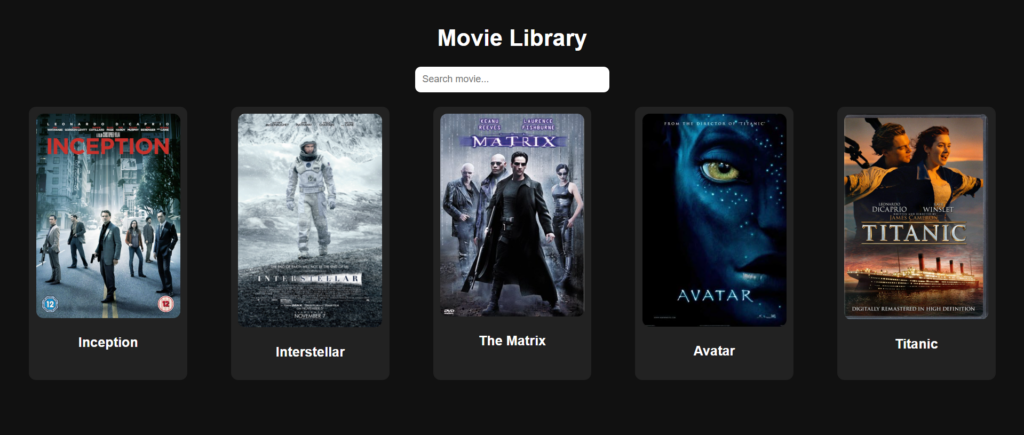
  { id: 1, title: "Inception", image: "https://m.media-amazon.com/images/I/912AErFSBHL._AC_SL1500_.jpg" },
  { id: 2, title: "Interstellar", image: "https://upload.wikimedia.org/wikipedia/en/b/bc/Interstellar_film_poster.jpg" },
  { id: 3, title: "The Matrix", image: "https://m.media-amazon.com/images/I/51EG732BV3L.jpg" },
  { id: 4, title: "Avatar", image: "https://m.media-amazon.com/images/I/41kTVLeW1CL._AC_.jpg" },
  { id: 5, title: "Titanic", image: "https://m.media-amazon.com/images/I/811lT7khIrL._SL1500_.jpg" }
];
If you want images displayed you will have to copy and paste from image url
State usage:
const [movieList, setMovieList] = useState(movies);
When the state changes, the UI is automatically re-rendered.
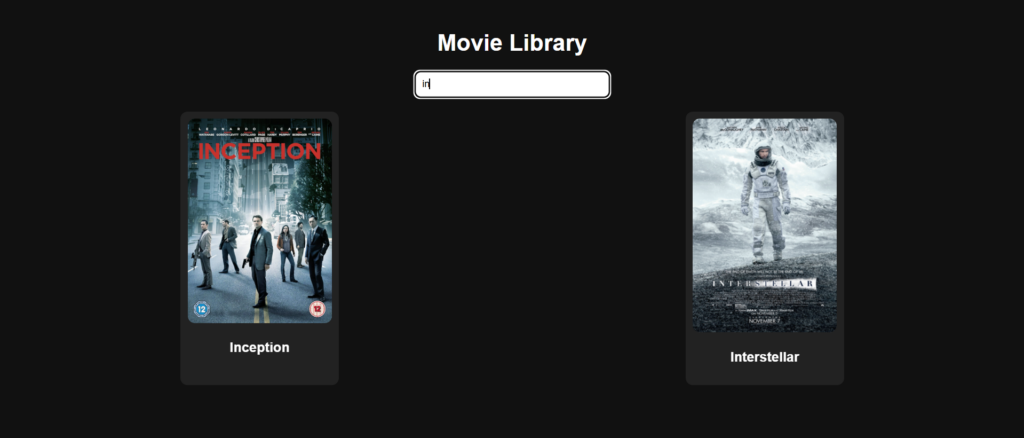
Adding a search function
To add a search function, we need two things:
- A place where the user can type (input field).
- A function that filters movies according to the text entered.
This is usually done by creating a new state variable searchTerm and using an API query or the filter() method.
Logic:
- The user types a word (e.g., “Batman”) into the search box.
- The onChange event updates the state of searchTerm.
- Pressing the search button triggers a function that searches for movies (either from the API or from an existing array) whose title contains the word “Batman”.
Input:
<input
  type="text"
  placeholder="Search movie..."
  onChange={(e) => setSearch(e.target.value)}
/>
Filtering:
const filteredMovies = movieList.filter(movie =>
  movie.title.toLowerCase().includes(search.toLowerCase())
);
Results: